

You know how you occasionally look at a directory and think, “What in the world is eating all my disk space?”
You run du. It spits out numbers, paths, nested directories, permission errors, mount points, and possibly the entire history of Western civilization. Then you start adding flags until the command looks like you lost a fight with your keyboard:
du -h --max-depth=1 . | sort -hrThat works. Mostly. But it still does not quite show the information the way I normally want to see it.
I want a simple table! Show me the directories directly under the current directory. Show me how large each one is. Show me how much space the loose files in the current directory consume. Show me the total. Show it with colors to draw my attention to what may be a concern. While you are at it, tell me how full the filesystem is so I know whether I am doing routine cleanup or participating in an emergency. That is what dsize does.
What Is dsize?
dsize is a Bash terminal tool(single script file) that displays directory sizes in a human-readable, color-coded table. It also shows usage information for the filesystem where the directory lives. That is it. That is all it does.
It is not a full disk-management suite. It does not launch a TUI, index your entire drive, create an SQLite database, require a daemon, or ask you to create an account so it can show you how large your Downloads directory is. It is a single Bash script.
You can just type:
dsizeAnd get a readable view of the current directory.
You can also point it somewhere else:
dsize /var/logNow you can find out which log directory has decided it wants to be the primary hog of your storage device.
But Why Though?
I got irritated. That seems to be how a lot of my little tools get started.
I use(d) du often(not daily but often enough to become familiar with it), and du is great at what it does. The problem is that I kept running some variation of the same command, piping it into sort, dealing with all the crazy "noise" with links/hidden-files/permissions, mentally separating the current directory from its subdirectories, and then running df separately to see whether the filesystem itself was getting full.
None of this is that difficult. But neither is walking across the room every time you want to change the channel on the tv. We still invented the remote.
I wanted one command that showed the information in the way I normally want to see it:
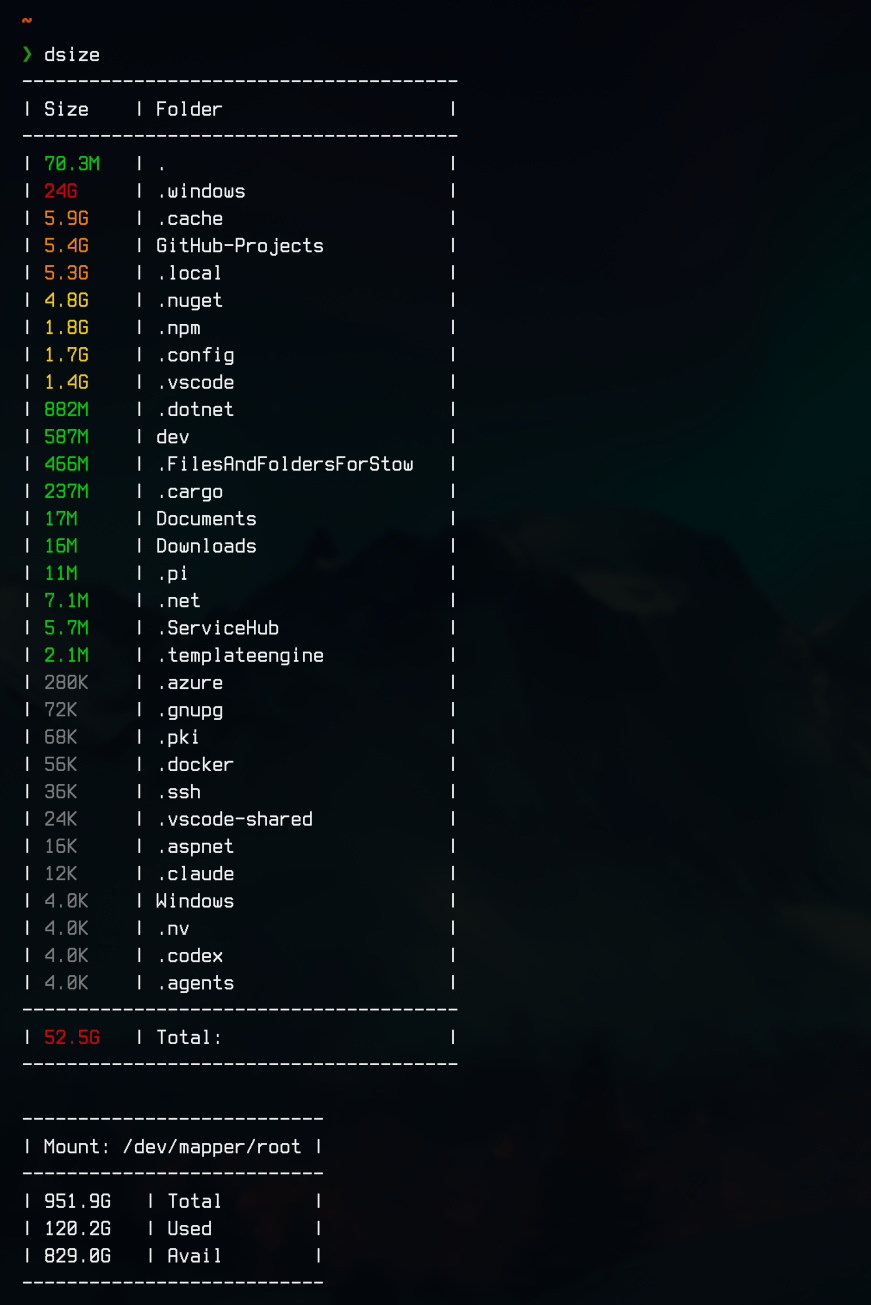
The . row Size represents files stored directly in the directory being scanned. It does not include the contents of the subdirectories listed below it. That distinction matters when you have seventeen ISO files, four database backups, and something named final-final-REAL-backup.tar.gz sitting loose in a that directory vs one of it's subdirectories.
What dsize Does
Under the hood, dsize does a few things to turn ordinary Linux commands into something easier to look at:
- Calculates the combined size of files stored directly in the selected directory.
- Uses a "single
dupass" to collect the recursive size of each immediate subdirectory. - Sorts the directories from largest to smallest.
- Skips duplicate directories that resolve to the same device and inode.
- Calculates a total for the displayed content.
- Uses
dfto retrieve total, used, and available space for the current filesystem. - Formats everything into dynamically sized tables.
- Adds color so larger directories are easier to spot without studying every number like it will be on the test.
The "single du pass" is valuable because the script does not repeatedly rescan every directory to gather different pieces of information. Storage can be slow enough without me helping it become slower.
Color Coded Sizes
directory sizes are colored based on their size:
| Size | Color |
|---|---|
| Less than 1 MB | Grey |
| 1 MB or more | Green |
| 1 GB or more | Yellow |
| 5 GB or more | Orange |
| 10 GB or more | Red |
The colors are not trying to tell you that every 10 GB directory is bad. Sometimes a directory is supposed to be large. A virtual machine image being 40 GB is understandable. A cache directory being 40 GB may need to explain itself.
The filesystem information is also color aware. As usage climbs, the available-space value changes from normal to yellow, to orange, to red. If less than half the filesystem is used, dsize leaves it alone. Your disk is doing fine. Relax.
Installation
Clone the repository:
git clone https://github.com/emo333/dsize.git
cd dsize
chmod +x dsize
You can run it directly from the repository(which is kinda silly):
./dsizeOr scan another directory:
./dsize /path/to/directoryInstall It as a Global Command
The most useful setup is to place the script somewhere on your PATH.
For a system wide installation:
sudo cp dsize /usr/local/bin/dsize
sudo chmod +x /usr/local/bin/dsize
After that, you can run it from anywhere:
dsizeOr:
dsize ~/ProjectsYou can now say, “I use dsize, BTW.” Whether anyone asked is irrelevant.
Install It for Only Your User
You can also install it under ~/.local/bin without using sudo:
mkdir -p ~/.local/bin # only if it doesn't already exist
cp dsize ~/.local/bin/dsize
chmod +x ~/.local/bin/dsize
Make sure ~/.local/bin is included in your PATH:
echo 'export PATH="$HOME/.local/bin:$PATH"' >> ~/.bashrc
source ~/.bashrc
Users of other shells than bash should add it to the appropriate shell configuration file. You zsh and fish peeps(weirdos!) know what to do.
Using dsize
Scan the Current Directory
dsizeNo arguments means “show me what is happening right here in this directory I am in.”
Scan a Specific Directory
dsize /var/libOr:
dsize ~/DownloadsThe Downloads directory is where files go to live after completing their original purpose and forgotten about. It is basically a digital junk drawer, except nobody finds twelve dollars in it.
Run the Script Without Installing It
You can execute the file directly(which is silly!):
./dsizeYou can also explicitly invoke Bash:
bash ./dsize /path/to/directoryYou would do this in the event your system's default shell is notbashor you are callingdsizefrom something like Python orcron
The repository README includes options for using an alias or shell function, but placing it in ~/.local/bin or /usr/local/bin is the cleanest approach for most people.
Requirements
dsize is intended for Linux systems with:
| Requirements |
|---|
| Bash 4.0+ |
GNU du |
GNU stat |
find |
df |
awk |
sed |
sort |
readlink |
There is no Python environment to create. No Node packages to install. No Rust compilation step. No Electron application consuming 900 MB of memory so it can display three columns of text. Just Bash and the GNU command line utilities that are already installed on most Linux distributions. Because the script uses GNU specific command options, macOS and BSD systems may need GNU coreutils installed or some modifications to the script.
Windows users can run it inside WSL, which is where Linux tools hang out in Windows these days, but not in Powershell (Gross!!).
About the . Entry
I mentioned this already but I think it needs more context. The . row can look slightly unusual the first time you run dsize. It represents the combined size of files directly inside the selected directory. Subdirectories are calculated and displayed separately(in their own row).
For example, say a project contains:
project/
├── application.log
├── backup.sql
├── src/
├── tests/
└── build/
The . row contains the sizes of application.log(a file) and backup.sql(a file).
The src, tests, and build directories each receive their own row containing their recursively calculated sizes.
This makes it easier to tell whether a directory is large because of its subdirectories or because "somebody" dropped a 37 GB database export directly into the project root and quietly walked away without any intention of "taking the trash to the road".
Duplicate and Mounted Directories
Filesystems can get weird. A directory might appear through a bind mount, a symbolic link, or another path that ultimately resolves to the same underlying location. Counting both paths would make the displayed total misleading.
dsize resolves each directory to its real path, reads its device and inode information, and skips entries it has already counted.
This is not an attempt to solve every exotic filesystem arrangement ever invented by neck beards with too much coffee. It is there to avoid the common cases where the same directory could otherwise be counted more than once.
Filesystem Information
After displaying the directory table, dsize shows the filesystem associated with the selected path:
----------------------
| Mount: /dev/nvme0n1p2 |
----------------------
| 931.5G | Total      |
| 712.8G | Used       |
| 171.3G | Avail      |
----------------------
That information comes from df, and it gives the directory size results some context.
Finding a 12 GB directory means something different when you have 700 GB available than it does when the drive has 400 MB remaining and your system is beginning to make the electronic equivalent of nervous eye contact.
dsize is not a replacement for df. It just puts the relevant information next to the directory sizes because that is usually where I want to see it.
Configuration
There is not much to configure, intentionally.
The table padding is controlled near the top of the script:
readonly PADDING=2The ANSI color values and size thresholds are also defined there. You can change them if you want different colors or have strong opinions about when a directory should become orange, yellow, red, cyan, or whatever floats your boat.
dsize doesn't have a configuration framework, YAML file, plugin system, theme marketplace, or cloud synchronized profile. It is a "directory size" script. We are going to try to remain focussed and calm.
How It Works
The basic flow looks like this:
Selected directory
        |
        +--> Find files directly in the directory
        |        |
        |        +--> Add their byte sizes
        |
        +--> Run du once for immediate subdirectories
        |        |
        |        +--> Resolve real paths
        |        +--> Deduplicate by device and inode
        |        +--> Sort by size
        |
        +--> Read filesystem information with df
        |
        +--> Calculate table dimensions
        |
        +--> Add ANSI colors
        |
        +--> Print the tables
The script writes its prepared output to a temporary file before displaying it and uses a trap to clean that file up when it exits. There is no background service and nothing remains running after the command finishes. dsize appears, tells you which directory ate the disk, and leaves. Like a responsible tool should.
What dsize Is Not
dsize is not intended to replace tools such as ncdu, dust, dua, or full graphical disk usage analyzers. Those tools can explore entire filesystems, drill into nested directories, delete files interactively, generate visualizations, and perform more advanced analysis. They are excellent when you need those features.
dsize is for the moment when you are already in a directory and want a quick answer to:
Which directories are large, how large are they, and how much space is left on this filesystem?
One command... One table... Back to whatever you were doing before your drive seemed to be acting weird.
Development
There is not much ceremony involved:
- Clone or fork the repository.
- Edit the
dsizeBash script. - Run it against a few directories.
- Make sure it does not lie about your storage.
- Submit a pull request.
- Expect many days before any response ;)
There is no build process. There is no dependency restoration. There is no twelve stage CI pipeline deploying a directory size script into a Kubernetes cluster. It is Bash. We can survive without an architecture review board.
The Pitch
Linux already has the tools needed to calculate directory sizes. dsize does not invent a new way to measure files.
It takes the information I(or you) normally gather from du, find, stat, and df, and presents it in the way I(or assumingly you) actually want to consume it.
Readable table. Human friendly sizes. Largest directories first. Filesystem information included. Colors where they help.
It is not revolutionary. It is not trying to be. It is just a small tool that does one thing and does it in a way that saves you from rebuilding the same command pipeline every time you wonder where your storage went.
Resources
Check it out on GitHub:
Shout Outs
YSAP(Dave Eddy) - This dude is the Yoda🧙♂️ of Bash