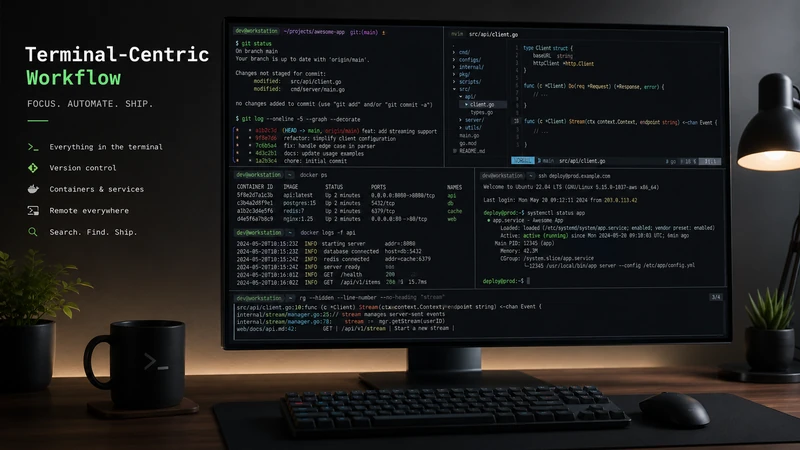
A terminal-centric workflow sounds way more intense than it really is. It sounds like something a person says right before they open a black screen, type 47 characters from memory, and somehow reboot a satellite. But really, it is much simpler than that. A terminal-centric workflow just means the terminal becomes the main place where you control your development work. Not the only place. The main place.
You can still use VS Code, Zed, Visual Studio, JetBrains tools, a browser, database GUIs, Figma, OBS, Slack, and whatever other graphical tools make sense. We are not trying to win some imaginary “I never touch my mouse” trophy. That trophy is fake. Also probably configured in YAML.
The point is this:
The terminal becomes your workbench
It is where you run your app, manage Git, start services, search code, read logs, run tests, connect to servers, kick off builds, and generally boss your computer around like you pay the electric bill.
What Is a Terminal-Centric Workflow?
A terminal-centric workflow is a way of working where most of your repeated technical tasks happen from the command line.
That might include:
- Opening and navigating projects
- Running frontend dev servers
- Starting backend APIs
- Running tests
- Managing Git
- Starting Docker containers
- Connecting to PostgreSQL
- Reading logs
- Searching through code
- Running database migrations
- SSHing into servers
- Using tools like tmux, Yazi, Neovim, fzf, ripgrep, LazyGit, and friends
- Running AI coding tools from inside the project directory
In other words, the terminal becomes the cockpit. Your browser is still there. Your editor is still there. Your database GUI can still exist peacefully in the village. But the terminal is where a lot of the action happens.
A Normal Workflow vs. A Terminal-Centric Workflow
A more traditional workflow might look like this:
- Open file manager.
- Find project.
- Open editor.
- Click around for Git status.
- Open another app for database.
- Open another window for containers.
- Open another thing for logs.
- Forget which window had the thing.
- Alt-tab like a raccoon in a trash can.
- Eventually find it.
A terminal-centric workflow might look more like this:
cd ~/projects/my-app
git status
docker compose up -d
npm run dev
That is not magic. That is just less wandering around.
For a React/Vite app:
npm install
npm run dev
npm run build
For a backend API:
npm test
npm run lint
npm run dev
For PostgreSQL:
docker compose up -d postgres
docker exec -it postgres psql -U app_user app_db
For .NET:
dotnet restore
dotnet build
dotnet test
dotnet watch run
Different stacks. Same idea. Use the terminal as the central control surface.
Why Bother?
Because once you get comfortable, it is fast. Not “I use Arch, btw” fast. Actually useful fast. A good terminal-centric workflow helps you reduce context switching, automate boring tasks, repeat things consistently, and understand what your tools are really doing.
It also makes your workflow easier to move between machines. Laptop? Server? Dev container? Cloud VM? Random old mini PC under your desk making fan noises like it is about to achieve flight?
The terminal is probably there.
Benefits
Benefit 1: Speed
The terminal is fast because commands are direct.
Instead of opening a container dashboard and clicking through menus, you can run:
docker compose ps
docker compose logs -f api
Instead of searching your editor’s UI for every reference to a function:
rg "createUser"Instead of poking around your project for environment variables:
rg "DATABASE_URL"Instead of clicking a test button:
npm testOr:
pytestOr:
dotnet testOr:
go test ./...Pick your flavor of pain. The terminal does not care. It will happily run all of them.
Benefit 2: Repeatability
This is one of the big ones. If you start your app manually by remembering twelve steps, eventually you will forget step seven. And step seven is always something annoying.
Like starting Redis. Or applying migrations. Or setting an environment variable. Or sacrificing a small rubber duck to the dependency gods. With a terminal-centric workflow, you can turn repeated steps into commands.
Example:
docker compose up -d postgres redis
npm run migrate
npm run dev
That can become a script. Or a justfile. Or a Makefile. Or package scripts.
For example:
dev:
    docker compose up -d postgres redis
    npm run migrate
    npm run dev

test:
    npm test

logs:
    docker compose logs -f
Then you run:
just devThat is much better than trying to remember the ancient ritual every time. Computers are good at remembering steps. Let them.
Benefit 3: Automation
The terminal naturally leads to automation. Once something is a command, it can become a script. Once it is a script, it can become part of your build process, deployment process, CI pipeline, or local development setup.
Example:
npm run lint && npm test && npm run buildThat runs linting, tests, and a production build. If one thing fails, the whole chain stops. Nice and cranky.
For Python:
ruff check . && pytestFor .NET:
dotnet format --verify-no-changes && dotnet testFor Go:
go fmt ./... && go test ./...For Docker:
docker compose up -d && docker compose logs -fThis is where the terminal starts feeling less like “typing commands” and more like building your own little control panel. A control panel with fewer buttons and more ways to destroy things if you are not paying attention. So, you know, respect it.
Benefit 4: Less Context Switching
Context switching is where productivity goes to get mugged.
You are coding.
Then you need logs.
Then you need Git.
Then you need a database.
Then you need a browser.
Then you need the container status.
Then "WTF was I doing???"
Then you stare at the screen like the answer might appear through shame.
A terminal-centric workflow lets you keep more of that in one place.
Example layout:
# pane 1
npm run dev

# pane 2
docker compose logs -f api

# pane 3
npm test -- --watch

# pane 4
git status
With tmux or Zellij, you can keep these panes arranged and ready. It is kind of like a tiling window manager inside your terminal. Very nerdy. Very useful. Very easy to over customize until you forget the original reason you opened the terminal. Ask me how I know.
Benefit 5: Better Understanding
GUI tools are great. But sometimes they hide too much. Git is a good example. A Git GUI can be helpful, but learning the CLI helps you understand what is actually happening.
git status
git diff
git log --oneline --graph --decorate --all
Once you understand those commands, a lot of Git becomes less mysterious. Still annoying sometimes. But less mysterious. The same applies to Docker, package managers, test runners, database migrations, and deployment tools.
When something breaks, knowing the command line version helps you troubleshoot instead of randomly clicking buttons and hoping the computer forgives you.
Benefit 6: Portability
A good terminal-centric workflow travels well.
If you know the basics of:
git ssh curl docker psql npm python dotnet rg fzf
then you can get real work done on a lot of different systems.
Linux desktop?
Yep.
macOS?
Yep.
Windows with WSL?
Yep.
Remote server over SSH?
Yep.
Container shell?
Yep.
Tiny homelab box named something ridiculous like server-final-v3-new-new-DELETME?
Also yep.
This matters because modern development does not happen in one perfect environment. You may work locally, inside containers, on remote machines, in CI/CD, or on cloud VMs. The terminal is one of the few interfaces that shows up almost everywhere.
Benefit 7: It Works Great With Modern Web Development
A lot of mainstream development is already command line friendly.
React and Vite:
npm create vite@latest
npm install
npm run dev
npm run build
Node backend:
npm install
npm run dev
npm test
PostgreSQL with Docker Compose:
docker compose up -d postgres
docker exec -it postgres psql -U app_user app_db
Python/FastAPI:
uvicorn app.main:app --reload
pytest
.NET:
dotnet watch run
dotnet test
dotnet ef database update
The modern dev world is full of CLI tools. You do not have to force the terminal into your workflow. It is already there, lurking in the corner, drinking coffee, waiting for you to stop pretending everything is a button.
Benefit 8: It Fits AI Coding Tools Really Well
AI coding agents also fit naturally into terminal-centric workflows. Many of these tools work inside a project directory. They inspect files, run commands, edit code, run tests, read errors, and try again. That means your terminal becomes a shared workspace between you and the AI assistant.
The agent can run things like:
git diff
npm test
npm run build
rg "auth"
docker compose logs -f api
Or:
dotnet testOr:
pytestThis is much more useful than an AI assistant that only says, “Try checking the logs.” Thanks, pecker head. Very insightful. Where are the logs? Which logs? Why are there 900 of them?
A terminal-centric workflow gives the agent actual tools to inspect the project and verify results. That is where things start getting useful.
Common Tools In A Terminal-Centric Workflow
You do not need all of these. Do not install everything just because some person on the internet has a dotfiles repo with 400 plugins and a README longer than a small novel. Start simple. Add tools when they solve a real problem.
Shells
| Common Shells | Known for |
|---|---|
| bash | everywhere |
| zsh | is popular |
| fish | is friendly |
| nushell | is interesting |
| powershell | is very capable especially on Windows |
Use what makes sense. Then customize only as much as actually helps. Although, yes, making your prompt look cool absolutely counts as helping. Kind of. Be real with yourself by making sure what your prompt has in it is "functionally" there. Not just "cool". Do you really need the time and the last time you scratched your butt in your prompt??
Terminal Emulators
A terminal emulator is the app that hosts your shell. A good one gives you better fonts, performance, keyboard shortcuts, tabs, splits, and general looky-feely. And yes, looky-feely matters. Not all can render images.
| Common Terminal Emulators |
|---|
| Ghostty |
| Alacritty |
| Kitty |
| WezTerm |
| Foot |
| Windows Terminal |
| GNOME Terminal |
| Konsole |
| iTerm2 |
Editors
You can use a terminal editor:
| Common Terminal Editors |
|---|
| Neovim |
| Vim |
| Nano |
| Emacs |
| Helix |
| Micro |
Or you can use a GUI editor from the terminal:
| Common GUI Editors |
|---|
code . |
zed . |
idea . |
A terminal-centric workflow does not require you to use Neovim. But Neovim does fit the workflow really well. Also, once you learn Vim motions, every text box without them feels slightly broken. This is both a blessing and a curse. Mostly a curse in web forms, GUI Editors, etc.
Read up on vim motions and Neovim [>>here<<
Search and Navigation
These tools are huge productivity boosters:
rg        # fast text search
fd        # friendly file search
fzf       # fuzzy finder
zoxide    # smarter cd
bat       # better cat
eza       # modern ls
tree      # show folder structure
Examples:
rg "useEffect"
fd routes
z my-app
nvim $(fzf)
This is the stuff that makes the terminal feel fast instead of old.
Multiplexers
Terminal multiplexers let you manage multiple terminal panes and sessions.
Common options:
tmux
zellij
screen
With tmux or Zellij, you can have one session for a project and keep panes open for:
- frontend server
- backend server
- logs
- tests
- Git
- database shell
This is especially useful when working over SSH because you can detach and come back later. Your session keeps running. Your sanity may or may not.
How To Implement A Terminal-Centric Workflow
Do not try to change everything at once.
That is how you spend three days configuring your prompt and accomplish absolutely nothing. Fun? Yes. Productive? Debatable.
Start with the stuff you already do every day.
Step 1: Use The Terminal For Project Startup
Pick one project.
Write down the commands needed to start it.
Example React/Vite app:
cd ~/projects/web-app
npm install
npm run dev
Example full stack app:
cd ~/projects/web-app
docker compose up -d postgres redis
npm run migrate
npm run dev
Example .NET app:
cd ~/projects/customer-portal
docker compose up -d postgres
dotnet restore
dotnet watch run
The point is not the language. The point is to make startup boring. Boring is good. Boring means repeatable. Boring means you are not debugging your own memory every morning.
Step 2: Add Project Commands
Once you know the steps, wrap them in easier commands.
For JavaScript projects, use package.json scripts:
{
  "scripts": {
    "dev": "vite",
    "build": "vite build",
    "test": "vitest",
    "lint": "eslint ."
  }
}
Then:
npm run dev
npm test
npm run build
For more general workflows, use a justfile:
dev:
    docker compose up -d postgres redis
    npm run migrate
    npm run dev

test:
    npm test

logs:
    docker compose logs -f

db:
    docker exec -it postgres psql -U app_user app_db
Then:
just dev
just test
just logs
just db
Now the project starts to document itself. Future you will appreciate this. Future you is tired and has forgotten why past you did anything.
Step 3: Use Docker Compose For Local Services
A lot of apps need services like:
- PostgreSQL
- Redis
- Mailhog
- Object storage
- Message queues
The usual suspects.
Docker Compose is a great way to make those services repeatable locally.
Example:
services:
  postgres:
    image: postgres:16
    environment:
      POSTGRES_USER: app_user
      POSTGRES_PASSWORD: app_password
      POSTGRES_DB: app_db
    ports:
      - "5432:5432"

  redis:
    image: redis:7
    ports:
      - "6379:6379"
Start it:
docker compose up -dCheck it:
docker compose psRead logs:
docker compose logs -fStop it:
docker compose downNow your local services are not “that database I installed six months ago and hope still works.” They are part of the project. Much better.
Step 4: Learn Git From The Terminal
You do not have to abandon GUI Git tools. But you should know the core commands.
git status
git diff
git add .
git commit -m "Improve login flow"
git pull
git push
git log --oneline
These commands are everywhere.
- Local machine
- Remote server
- Dev container
- CI environment
- AI coding tool
Once you know Git from the terminal, you are less dependent on any one editor or GUI. Also, when Git gets weird, and it will, the terminal is where most of the real answers live.
Step 5: Add Better Search
This is one of the easiest wins.
Install ripgrep.
Then use:
rg "thingIAmLookingFor"Examples:
rg "DATABASE_URL"
rg "useAuth"
rg "connectionString"
rg "TODO"
rg "createUser"
This is faster than wandering around the file tree opening random files like you are searching for snacks in the pantry. You know the thing is in there. Just ask the machine.
Step 6: Learn A Terminal File Manager
This is optional, but very Very VERY recommended. Tools like Yazi or Ranger give you a fast file manager inside the terminal. Yazi especially fits nicely into a terminal-centric workflow. You can browse files, preview content, move things around, and open files without leaving the terminal.
I have a post all about Yazi >>here<<
This is the part where people say, “Why not just use a GUI file manager?”
And the answer is:
Sometimes I do. But most of the time, I am already in the terminal. So why leave? Unless drag-and-drop is required. Then fine. I will open the GUI file manager. Begrudgingly.
Also, many people will use their Editor (like Neovim) for folder/file management. Which is cool. Actually really cool with "file pickers" in Neovim like oil.nvim. I use it too, if I am already in Neovim. But, I don't open up Neovim just to manage folders/files(especially if the folders/files are not in /home). I just type y in my terminal to open Yazi. :)
Now, this whole terminal file manager deal I am goin on about is cool BUT learn the basic folder/file commands first:
ls
cat
cd
touch
mkdir
cp
mv
chmod
chown
rm
Step 7: Try tmux Or Zellij
Once you are regularly running multiple terminals, try a multiplexer.
Example project session:
- Pane 1: editor
- Pane 2: frontend dev server
- Pane 3: backend server
- Pane 4: logs
- Pane 5: Git commands
This lets you keep your project workspace together. Detach. Come back(Attach) later. Everything is still there. It is like suspending your brain for complete context shift then BOOM you are right back where you were!
Not to mention, you can have multiple "workspace sessions" that are all sitting out there for you to attach to in the exact state you left them whether that was 2 minutes ago or a month ago.
I have a post all about tmux where I go into other benefits >>here<<
Real-World Example: React, Vite, API, PostgreSQL
Here is a simple terminal-centric session for a mainstream web app.
cd ~/projects/web-app

git pull

docker compose up -d postgres redis

npm install

npm run dev
Another pane:
npm testAnother pane:
docker compose logs -f apiSearch code:
rg "useAuth"
rg "DATABASE_URL"
rg "createUser"
Connect to PostgreSQL:
docker exec -it postgres psql -U app_user app_dbCommit changes:
git status
git diff
git add .
git commit -m "Improve login flow"
git push
Nothing exotic. Nothing mystical. Just a solid workflow that keeps the important stuff close.
Real-World Example: Backend API Workflow
The same pattern applies across languages.
Node:
npm install
npm run dev
npm test
Python:
uv sync
uvicorn app.main:app --reload
pytest
.NET:
dotnet restore
dotnet watch run
dotnet test
Go:
go run ./cmd/api
go test ./...
Java:
./mvnw spring-boot:run
./mvnw test
The tooling changes. The workflow pattern does not:
- Start services.
- Run the app.
- Run tests.
- Watch logs.
- Search code.
- Commit changes.
The terminal gives you one place to control that loop.
Pros
The good stuff:
- Fast once you build muscle memory
- Repeatable
- Easy to automate
- Works great over SSH
- Works across many systems
- Reduces context switching
- Helps you understand your tools
- Great fit for containers
- Great fit for Git
- Great fit for AI coding agents
- Easy to document in scripts
- Less tied to one specific editor or IDE
It also feels good. There is something satisfying about running one command and watching your project come alive. Like flipping the big switch in a movie lab. Hopefully with fewer sparks.
Cons
The terminal has downsides. Let's not bs ourselves that it is all sunshine and perfectly aligned monospace fonts with catppuccin colors.
The Learning Curve Is Real
Commands are not always obvious.
This:
tar -xzf archive.tar.gzis useful. It is also not exactly self explanatory. A GUI may be slower, but it often shows you options. The terminal expects you to know things. Or at least know how to find them.
I got ya covered though... Check out a cool tool to help >>here<<
Errors Can Be Cryptic
Sometimes the terminal gives you a helpful error. Sometimes it gives you a paragraph of ancient curses. You get better at reading them over time, but early on it can feel rough.
Mistakes Can Be Destructive
This is the classic warning: DO NOT TYPE THIS IN YOUR TERMINAL!!!
rm -rfThe terminal will absolutely do what you ask. Even if what you asked was stupid. It does not gently say, “Are you sure, buddy?” Unless the tool was designed to do that. Respect destructive commands. Read before pressing Enter. This has been your tiny safety sermon.
Customization Can Get Silly
Terminal customization is fun. Too fun. Dangerously fun. You start by adding a Git branch to your prompt. Then suddenly it is 2:00 AM and you are debugging why your shell prompt takes 5 seconds to render because it checks Kubernetes, Git, Python, Node, battery status, moon phase, and whether Mercury is in retrograde.
Customize what helps. Try not to turn your workflow into a museum exhibit.
"Ricing" your terminal actually has benefits that I go into >>here<<
Limitations
The terminal is powerful, but it is not the best tool for everything. Some work is visual and/or mouse driven.
Examples:
- UI design
- Image editing
- Video editing
- Browser testing (the most common pain point)
- Diagramming
- Large spreadsheet analysis
- Visual database exploration
- Dashboard monitoring
- Drag-and-drop workflows
Can you do some of this from the terminal?
Sure. Should you? Sometimes no.
The point is not to become "terminal-only". The point is to become "terminal-fluent". Use the terminal where it shines. Use graphical tools where they are better. There is no shame in using the right tool. There is shame in spending four hours forcing a terminal solution to a problem solved by dragging a file into a browser. And even then, not real shame. Just nerd shame. Different thing.
Who This Workflow Is Good For
A terminal-centric workflow is especially useful for:
- Web developers
- Backend developers
- Full-stack developers
- Linux power users
- DevOps engineers
- System administrators
- Homelab peeps
- Cloud engineers
- Security folks
- Data engineers
- Peeps using containers
- Peeps using AI coding agents
- Anyone who works over SSH
- Anyone tired of clicking through the same five things every day
It is also great for people who like understanding their tools instead of treating the computer like a mysterious rectangle of judgment.
Who Should Not Force It?
Do not force a terminal-centric workflow just because it looks cool or some dude on YouTube said to.
It may not be ideal if:
- You are brand new and the terminal is slowing your learning too much
- Your work is mostly visual
- Your team uses shared GUI workflows for good reasons
- You are in a high risk environment and do not understand the commands yet
- You are only doing it because some internet person said “real developers use terminals”
Real developers use whatever helps them do good work. Sometimes that is Neovim in tmux. Sometimes that is Visual Studio. Sometimes that is a web UI. Sometimes that is a sticky note and a strong cup of coffee. Use what works. Improve what does not.
Practical Starting Point
Here is a reasonable path:
- Use the terminal for Git.
- Use the terminal to run your app.
- Use the terminal to run tests.
- Learn
rgfor searching code. - Use Docker Compose for local services.
- Learn basic PostgreSQL commands.
- Add a few shell aliases.
- Try a terminal file manager like Yazi.
- Try tmux or Zellij.
- Save your config in dotfiles.
Do not do all of this in one weekend. Unless you enjoy turning a productivity improvement into a side quest. Which, honestly, sometimes I do. But still. Start small. Make one repeated task easier. Then another. Then another. That is how the workflow gets built. If you actually start using the terminal for things, I am 100% sure you will get hooked into wanting it more and more.
Final Thoughts
A terminal-centric workflow is not about rejecting GUI tools. It is not about pretending the mouse does not exist. It is not about becoming some hooded command line wizard who only communicates through shell scripts. Although the robe would be comfortable. It is about making your workflow faster, more repeatable, more portable, and easier to automate.
The terminal gives you a common language across frontend development, backend APIs, databases, containers, Git, servers, scripts, networking, and AI coding tools. It turns repeated work into commands. Commands into scripts. Scripts into workflows. And workflows into something you can actually rely on.
The goal is not to be "terminal-only". The goal is to be "terminal-fluent". Use the terminal where it gives you speed, control, and clarity. Use graphical tools where they make more sense.
And when in doubt, remember the sacred rule:
If you have to do it more than twice, it probably deserves a command or script.
Yea, I made that up. :)